
GastroApp manual
Temperatures (HACCP), labels and waste
Temperature records ready for an inspection, prep labels and a log of what you throw away.
Step 1. Open Temperatures. Every fridge, freezer or hot-holding unit is a control point with its safe range.
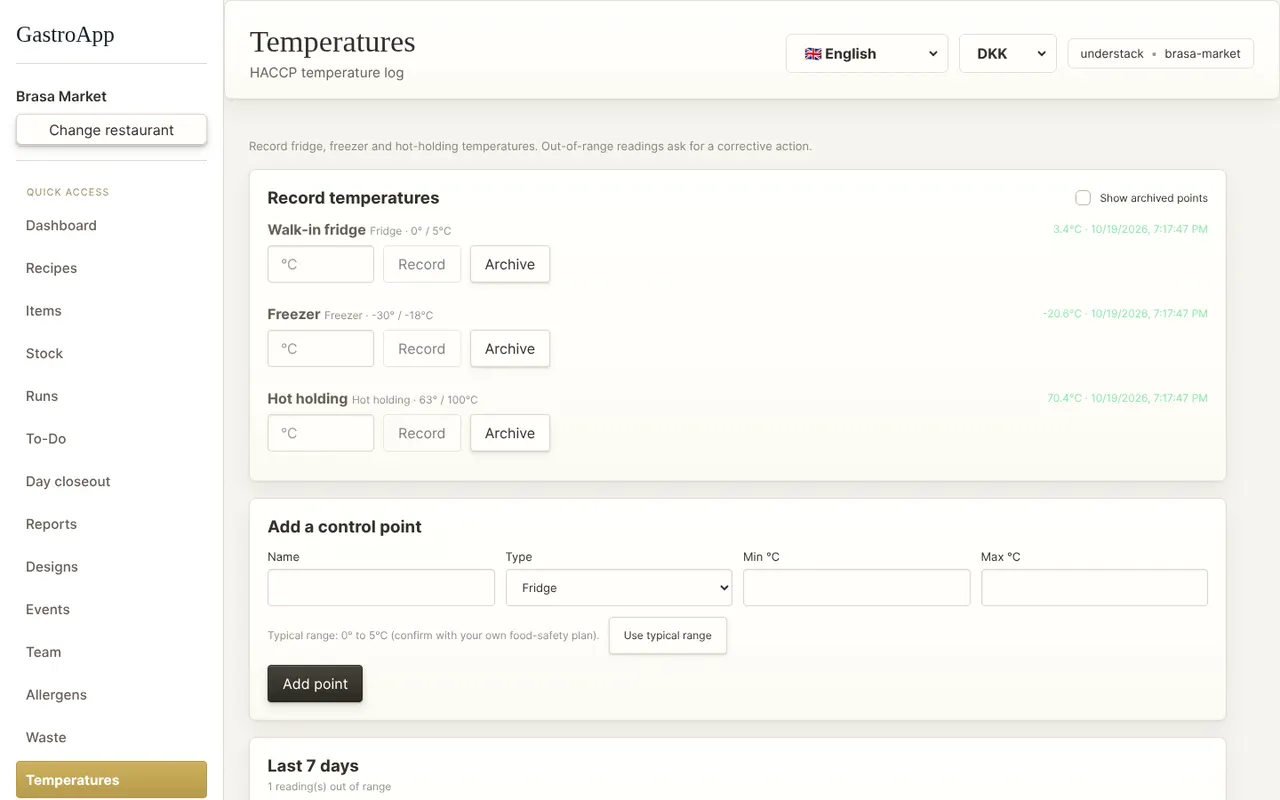
Temperature log Step 2. To add one, use Add a control point: name, type (Fridge, Freezer, Hot holding, Cooling…) and the range. Use typical range fills the usual limits; confirm them against your own food-safety plan. Press Add point.
Step 3. Every day type the temperature of each point and press Record.
Step 4. If a reading is outside the range, GastroApp asks what you did about it and saves the answer. Readings without an action stay highlighted until someone adds it (there are quick phrases).
Step 5. Archive removes a point from the daily list but keeps every reading; a manager can restore it. Archiving and corrective actions are logged with the person's name under Change history.
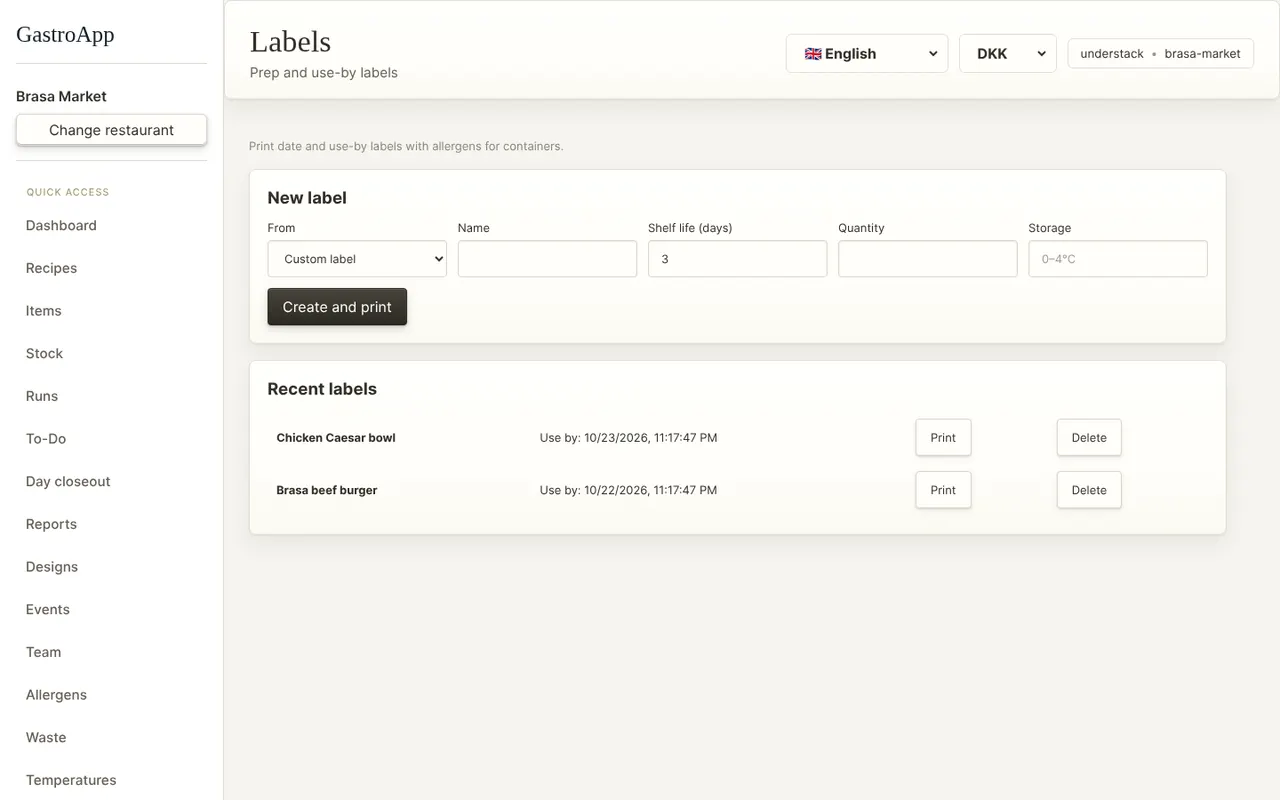
Step 6. For prep labels open Labels: choose a recipe or product (or Custom label), set the days of shelf life and press Create and print. The label shows production date, use-by date, storage and allergens.
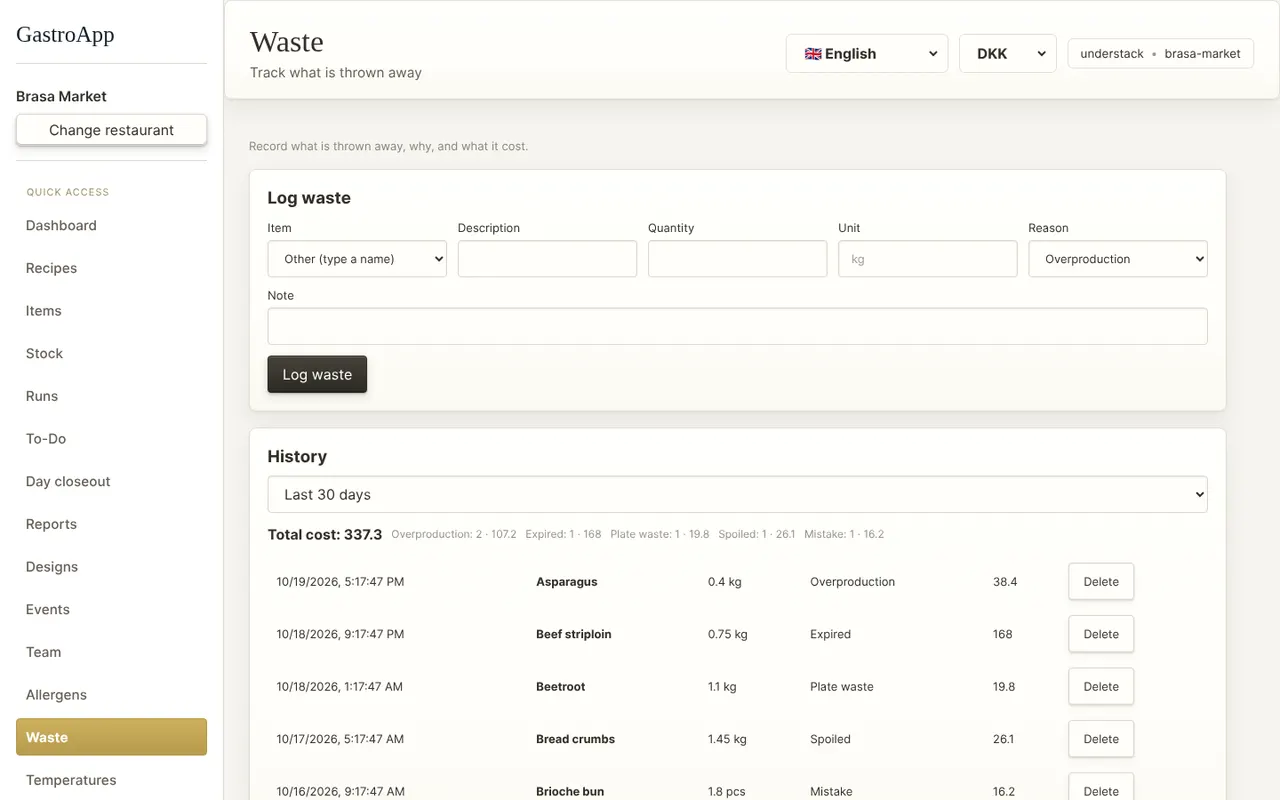
Prep labels Step 7. To record what you throw away open Waste, pick the product, the quantity and the reason (Expired, Overproduction, Plate waste, Spoiled, Mistake) and press Log waste.
The cost comes from the latest purchase price, and the history shows the total cost per reason so you can see where money is lost.
Waste log