
GastroApp manual
Counts, equipment and documents
Scheduled stock counts, equipment with maintenance dates and a library of files.
Step 1. Open Stock counts (needs the Stock module). Press New schedule, choose the items and when they are counted (for example every other Monday).
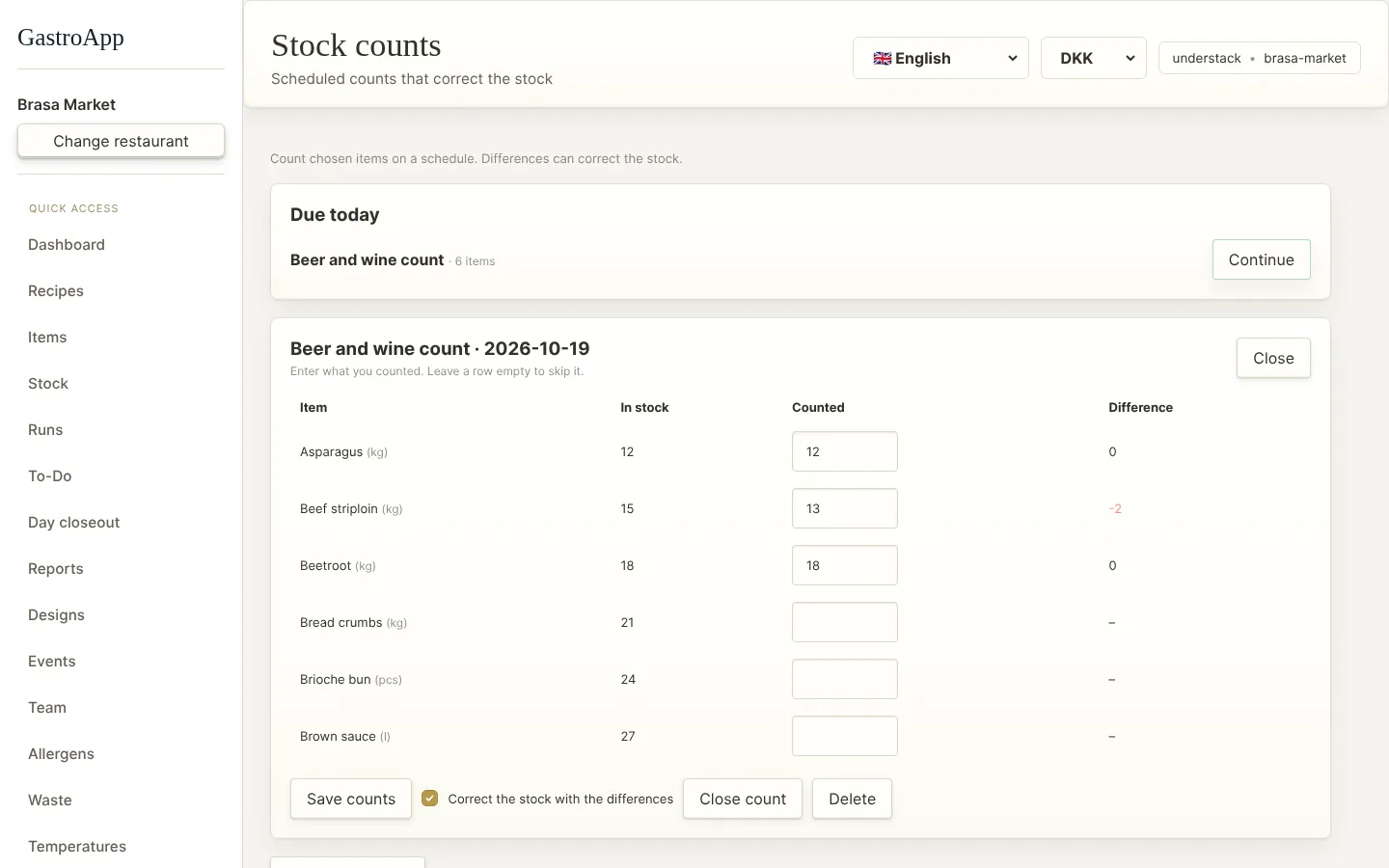
Stock counts Step 2. On the day, Due today shows the count. Press Count items now or Continue, write what you counted and see the difference against the stock.
Step 3. A head chef closes the count and can tick the option to correct the stock: the differences become stock adjustments.
Step 4. Open Equipment. Press Add equipment and give it a status (OK, Missing, Needs repair, Replace), a location and a quantity.
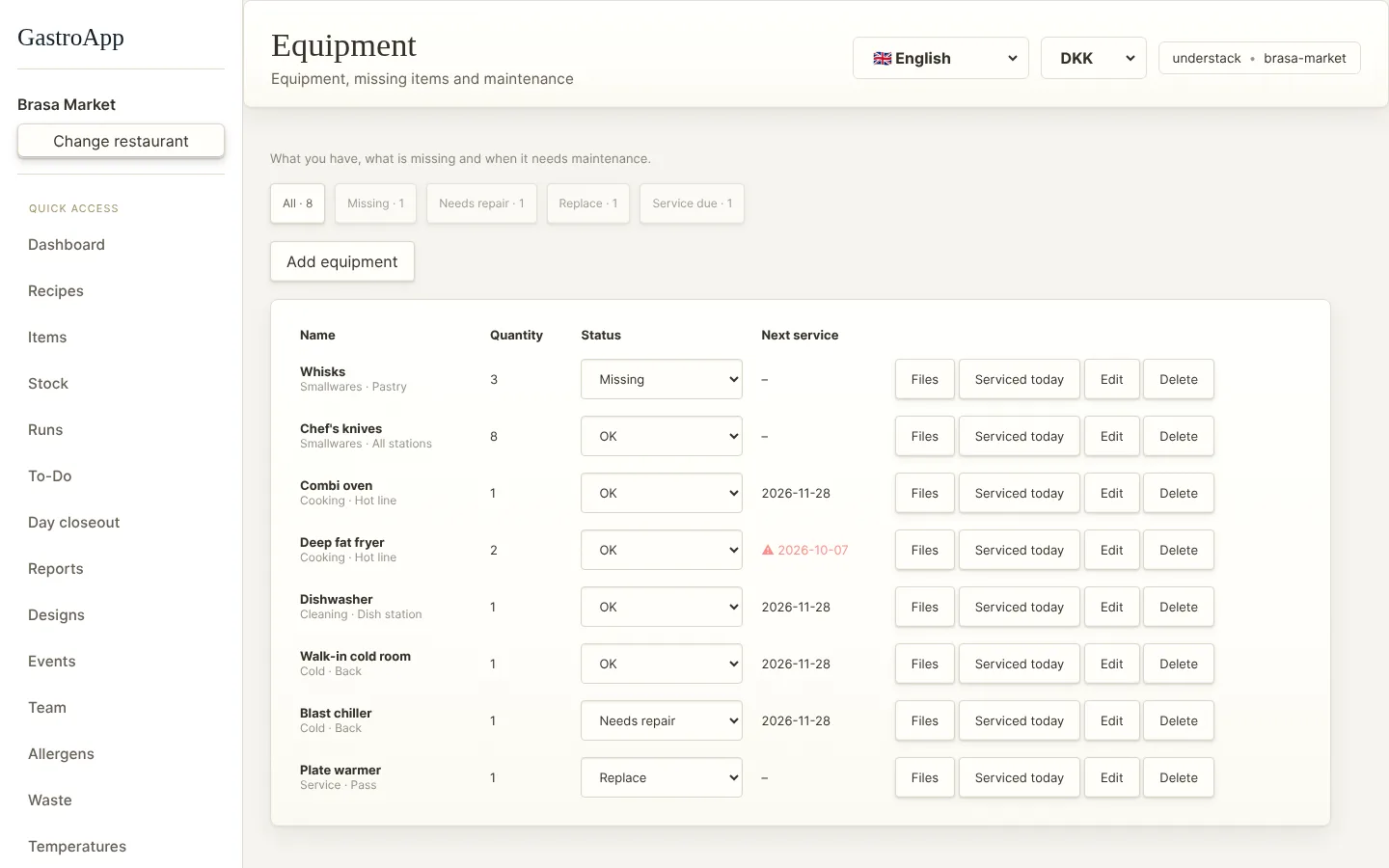
Equipment Step 5. Add a service interval to get the next service date. Overdue service is shown in red; Serviced today schedules the next one.
Step 6. Open Documents and press Upload to store PDFs or photos (up to 10 MB each): menus, procedures, contracts, hygiene manuals. Find them again by category.
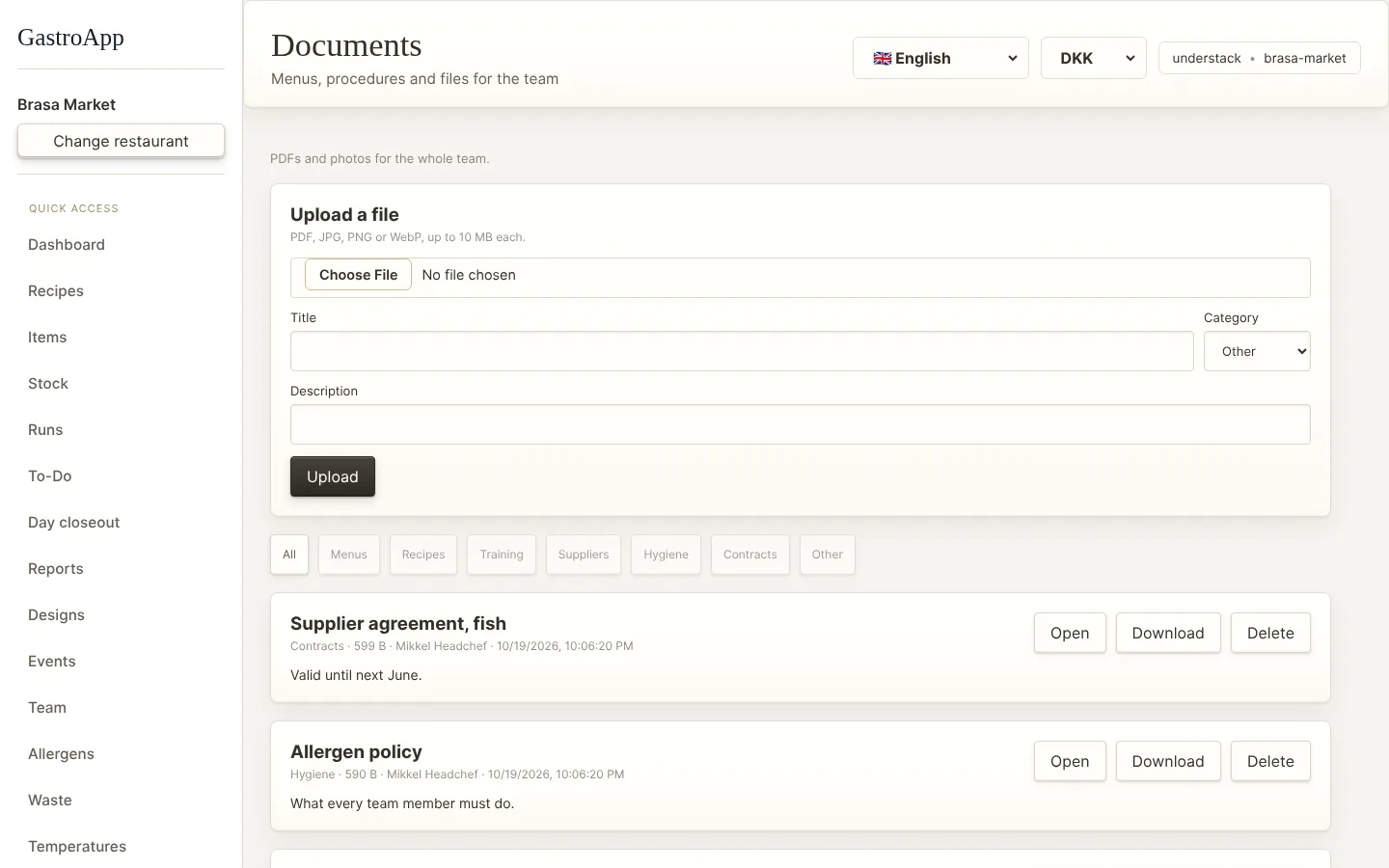
Documents library