
GastroApp manual
Suppliers, receiving and orders
Keep supplier details, record deliveries and turn low stock into purchase orders.
Step 1. Open Suppliers and press New supplier. Add the contact, customer number, order days, delivery days, notes and files.
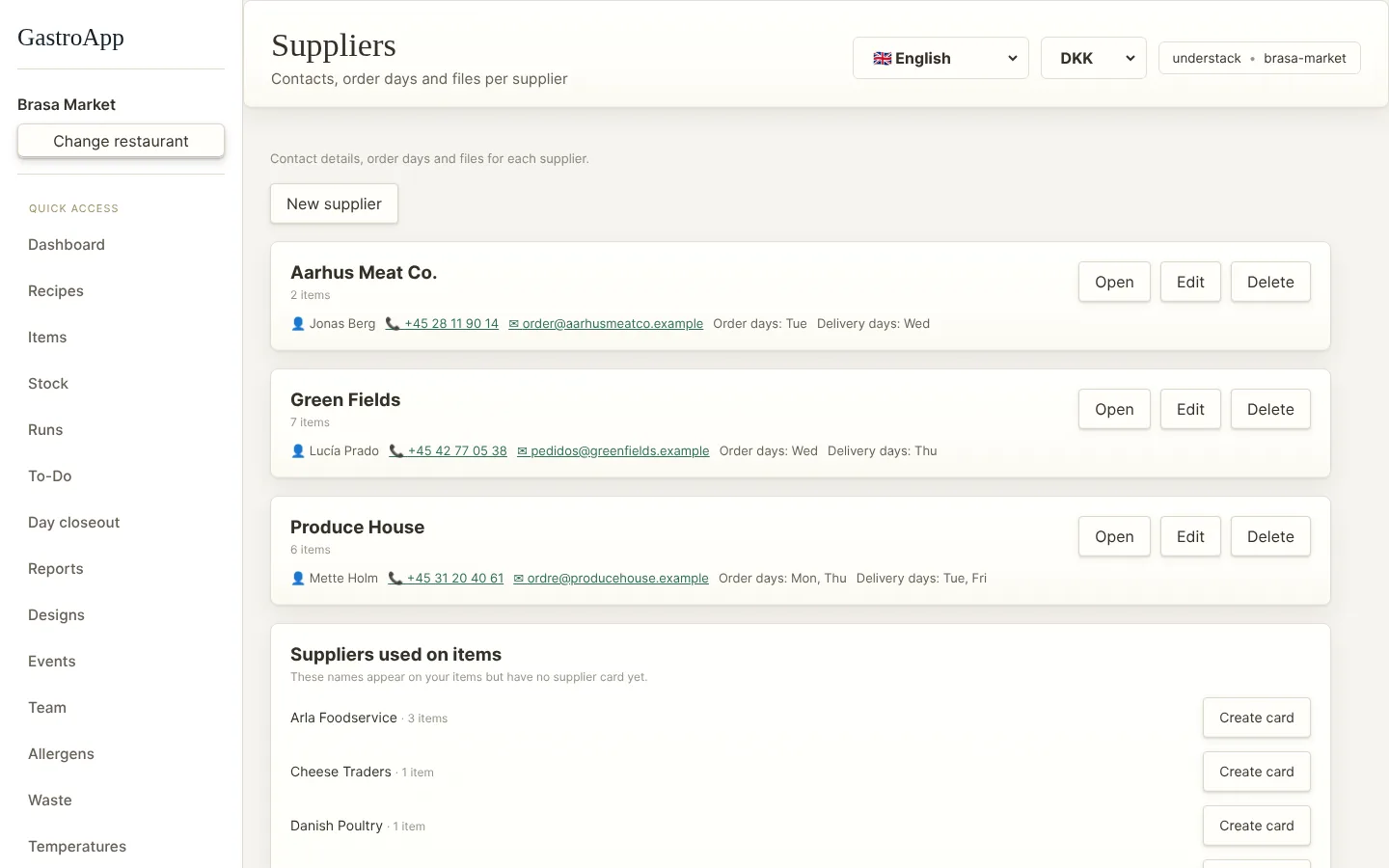
Suppliers page Step 2. Supplier names you already use on items but have no card yet appear in a list: press Create card to add them with one click.
Step 3. When a delivery arrives open Receiving and press New delivery. Choose the supplier, write the delivery note number and press Add line for each product with quantity and temperature.
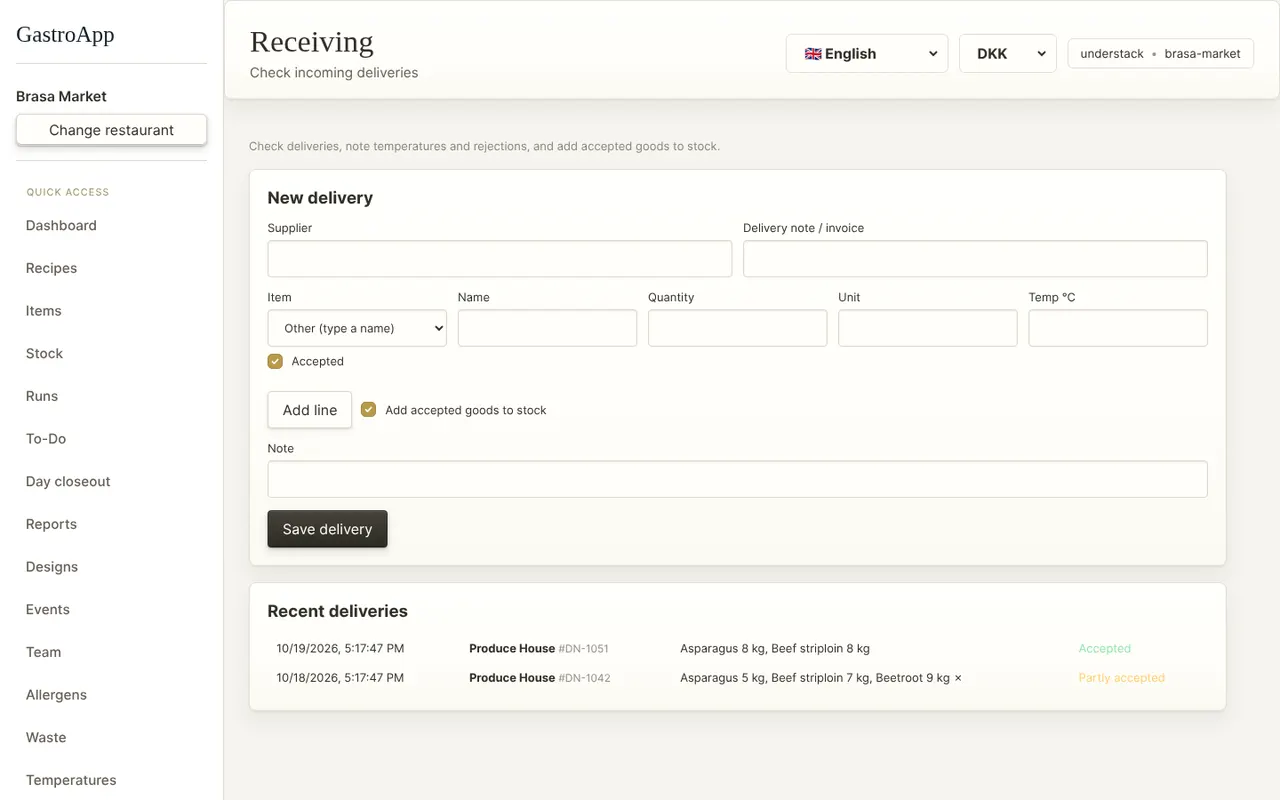
Receiving page Step 4. Untick Accepted to reject a line and write the reason. Accepted lines can go straight into the stock. Press Save delivery.
Step 5. Open Orders. Suggested orders shows the items below your low-stock limit grouped by supplier.
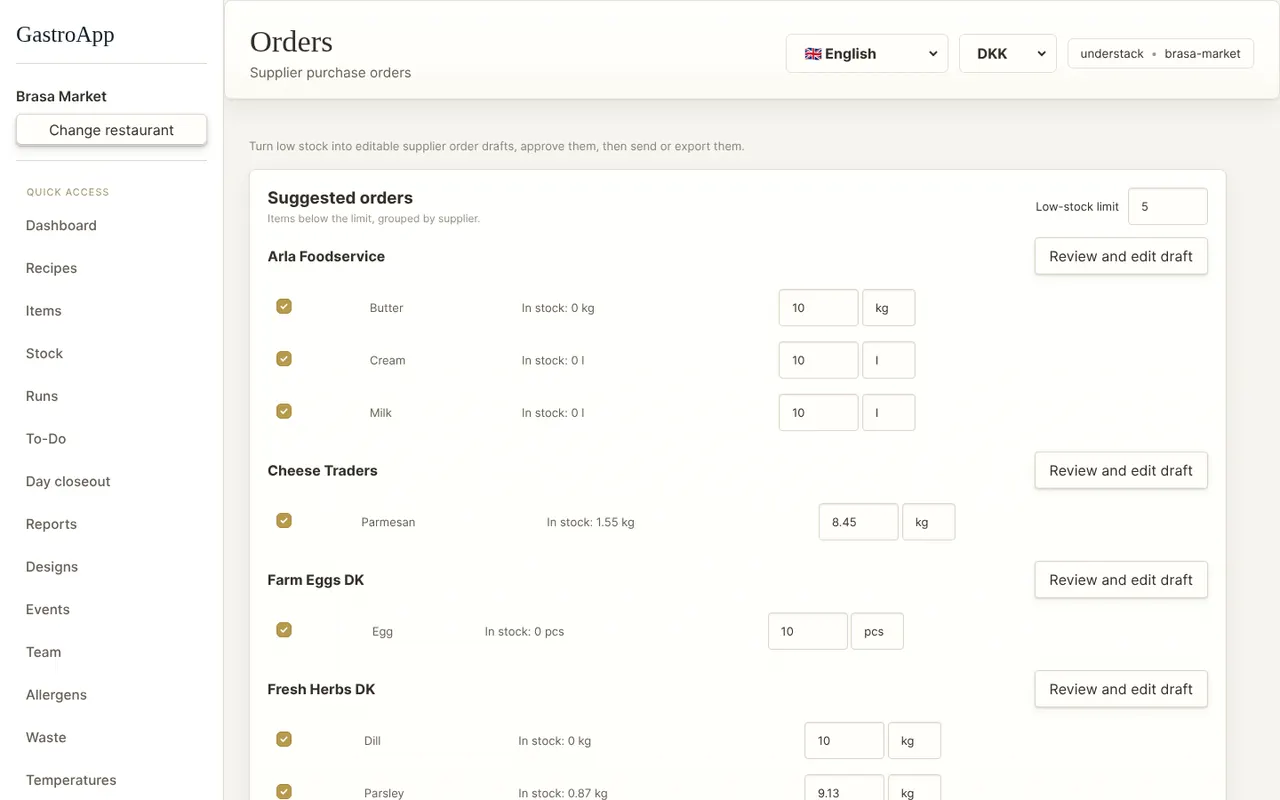
Orders page Step 6. Press Review and edit draft: untick lines, change quantities or units, add the supplier email, delivery date, who receives and notes, and correct prices.
Step 7. The owner or head chef presses Approve. Then send it: Copy text, Download CSV or Email. Later mark it as received.
An approved order is locked unless you send it back to draft. Every step is recorded. Orders need the Stock module.