
GastroApp manual
Stock: movements and low-stock alerts
Record what comes in, goes out or needs adjusting, and see what is running low.
Step 1. Open Stock. At the top you see the items below the low-stock limit, the total items and the latest movements.
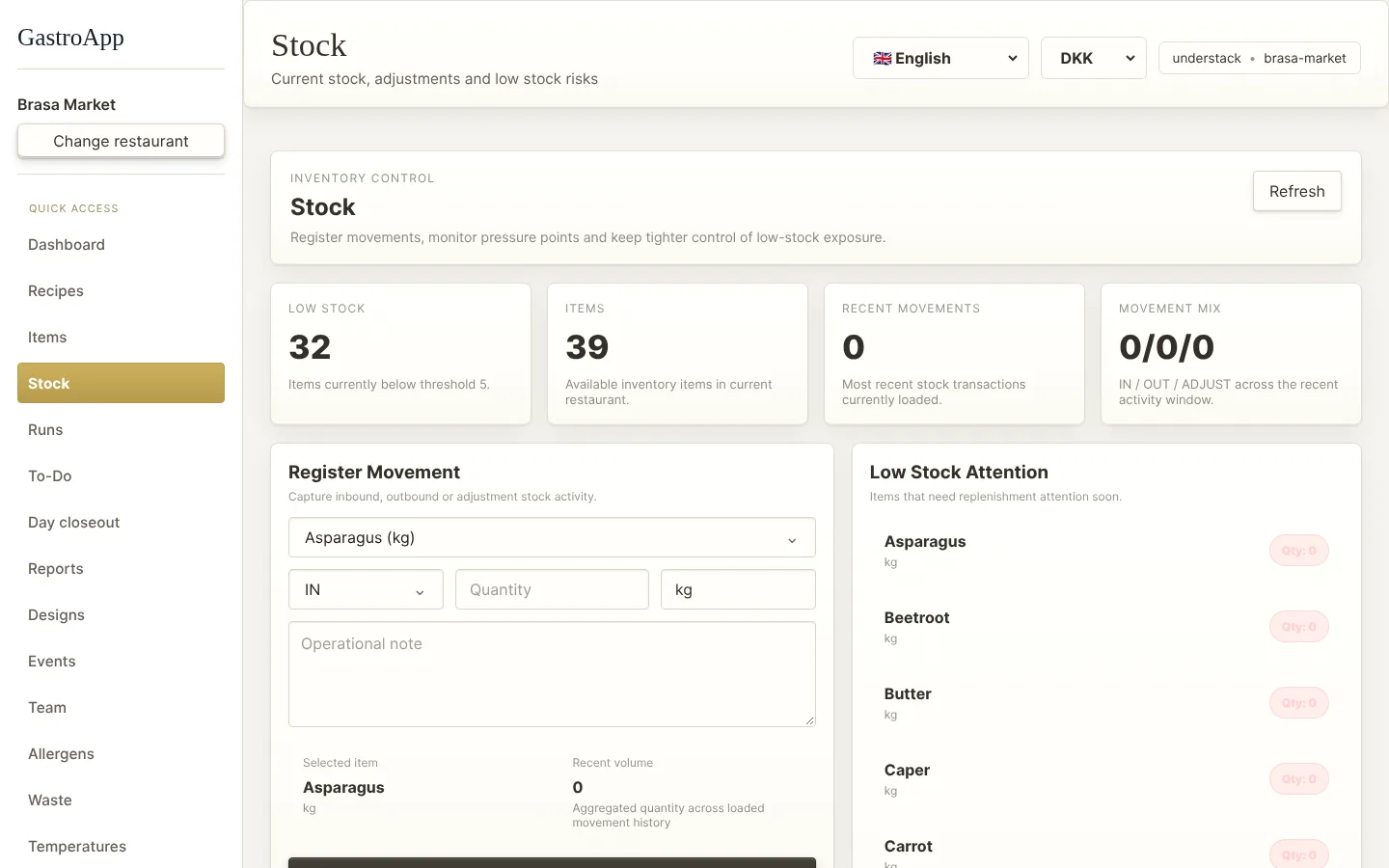
Stock page Step 2. Under Register Movement pick the item.
Step 3. Choose the type: IN (delivery or purchase), OUT (used or sold) or ADJUST (correct the balance).
Step 4. Type the Quantity, check the Unit and, if useful, add an Operational note (who, why).
Step 5. Press Save Movement. It appears in Recent Movements.
Step 6. Low Stock Attention lists the items that need to be ordered soon. The limit is one number for every item (5 by default), not one per item. On the Orders page you can set the limit used for suggested orders.
To compare the book stock with what is really on the shelf, use Stock counts (chapter “Counts, equipment and documents”).