
GastroApp manual
Sign in for the first time
Open GastroApp, sign in with your company, pick your restaurant and find your way around.
Step 1. Open app.gastroapp.dk in your browser. It works on a computer, a tablet and a phone; there is nothing to install.
Step 2. Fill in Company (the workspace name your owner gave you, for example
my-restaurant), your Email and your Password. Press Show if you want to see what you typed.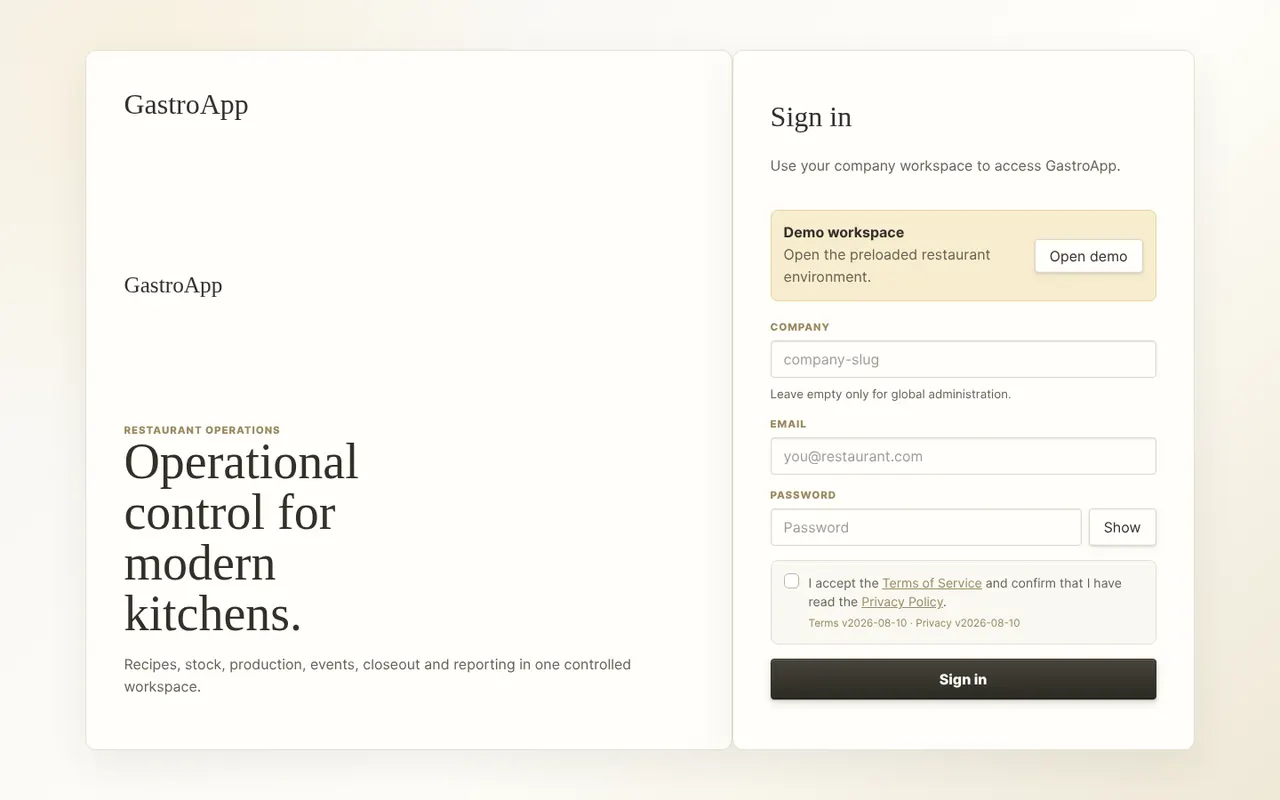
GastroApp sign-in page with Company, Email and Password Step 3. Tick the box that accepts the Terms of Service and confirms you have read the Privacy Policy. You cannot sign in without it.
If the terms are updated later, GastroApp asks you to accept the new version once before you continue.
Step 4. Press Sign in.
Step 5. If your company has more than one restaurant, choose yours and press Enter workspace. With a single restaurant it opens by itself.
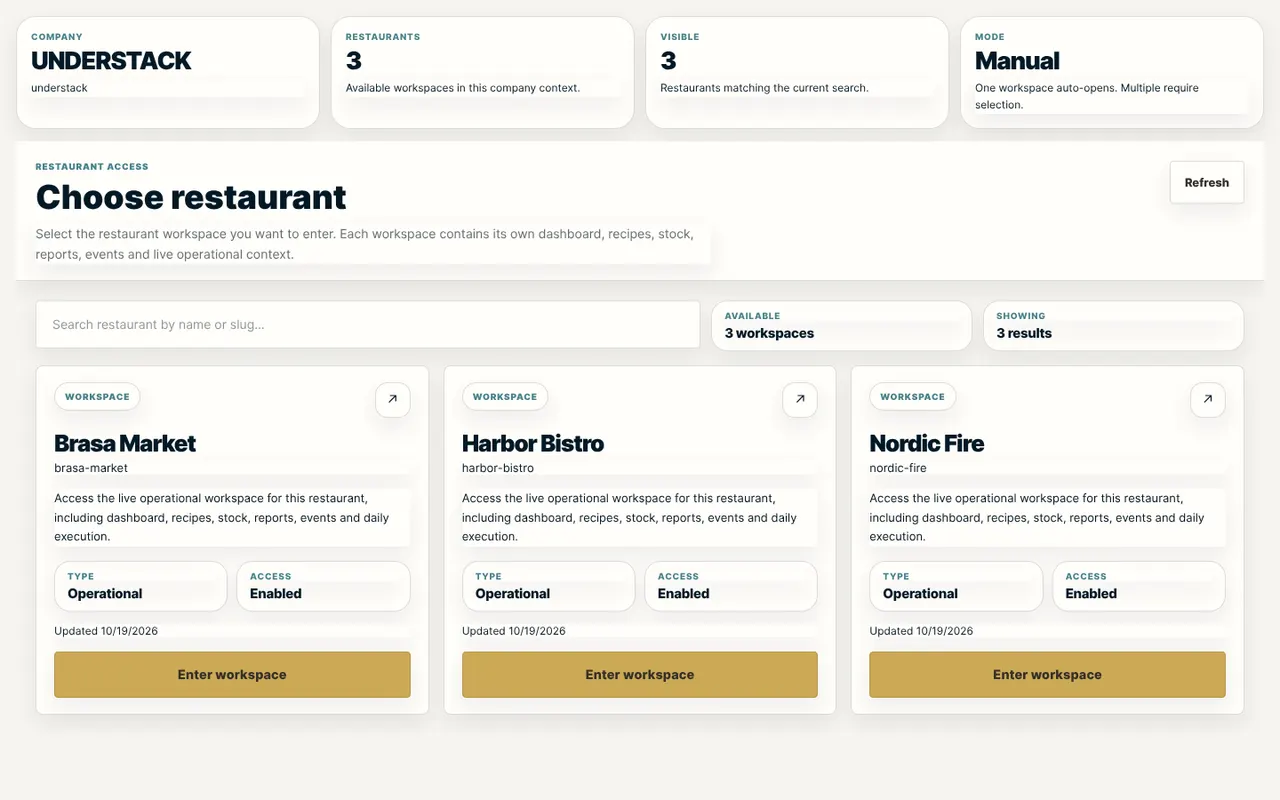
Choosing a restaurant after signing in Step 6. You land on the Dashboard: today's production plan, stock alerts and open tasks. The menu is on the left (on a phone, tap the menu button at the top).
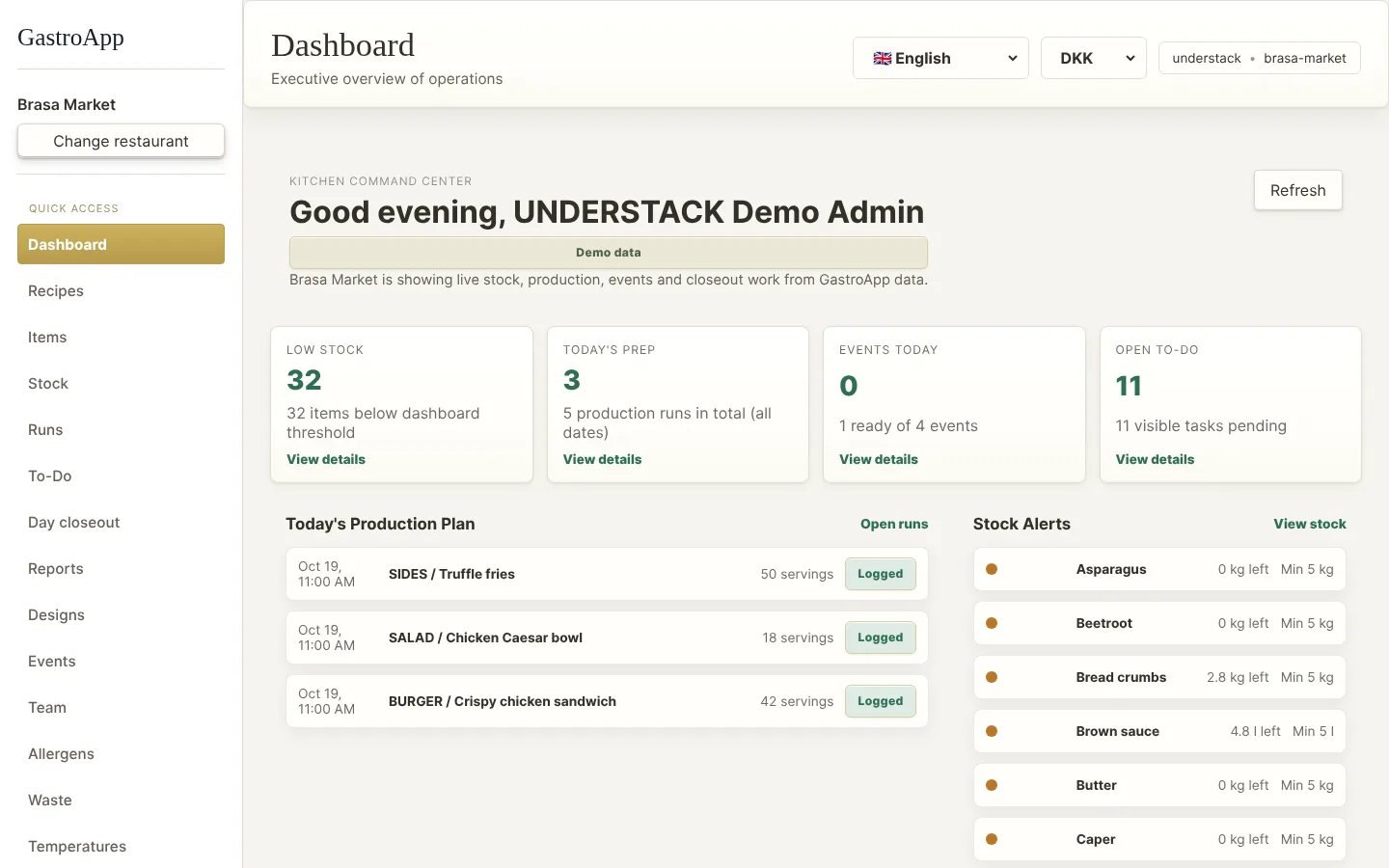
GastroApp dashboard Step 7. At the top right you can change the language and the currency. GastroApp remembers your language the next time you sign in.
Step 8. Just want to look around? On gastroapp.dk press Open demo. It is a sample restaurant with data already loaded; nothing you do there affects a real kitchen.