
GastroApp manual
Add your team and set roles
Create users, give each person the right role and change your own profile and password.
Step 1. Open the menu group Management and choose Users. Only the owner (ADMIN) and the head chef (HEADCHEF) see this page.
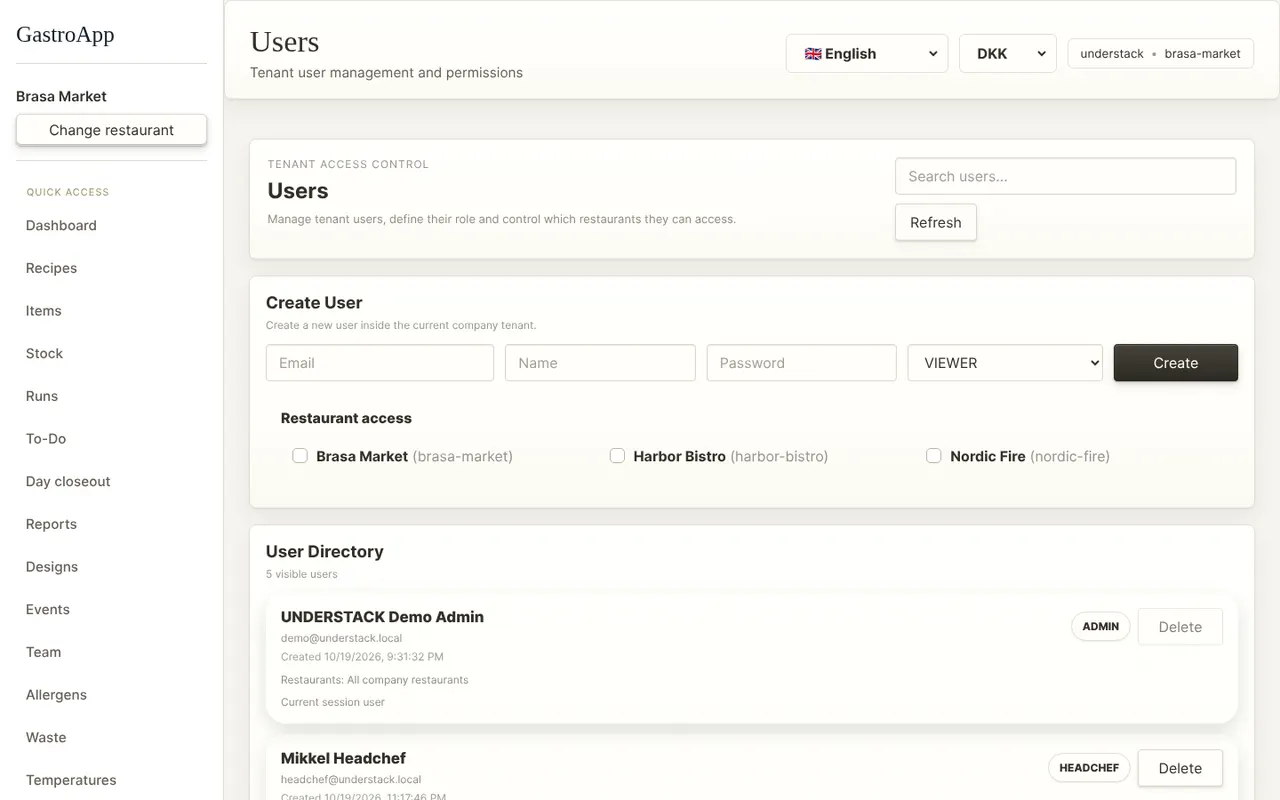
Users page Step 2. Under Create User type the Email, the Name and a first Password. Pick the role and tick the restaurants the person may enter.
Step 3. The roles: ADMIN (owner, full access), HEADCHEF (runs the kitchen, approves orders, closes counts), SOUSCHEF (sets up and edits), KITCHENHELPER (records waste, temperatures, labels, deliveries and notes), VIEWER (read only).
Give people the smallest role that lets them do their job. You can change it later.
Step 4. Press Create. Send the person the company name, their email and the first password; they sign in as in the first chapter.
Step 5. Everyone can edit their own details in Settings: Save profile for the name, Change password for the password, and Export my data if you need a copy of your data.
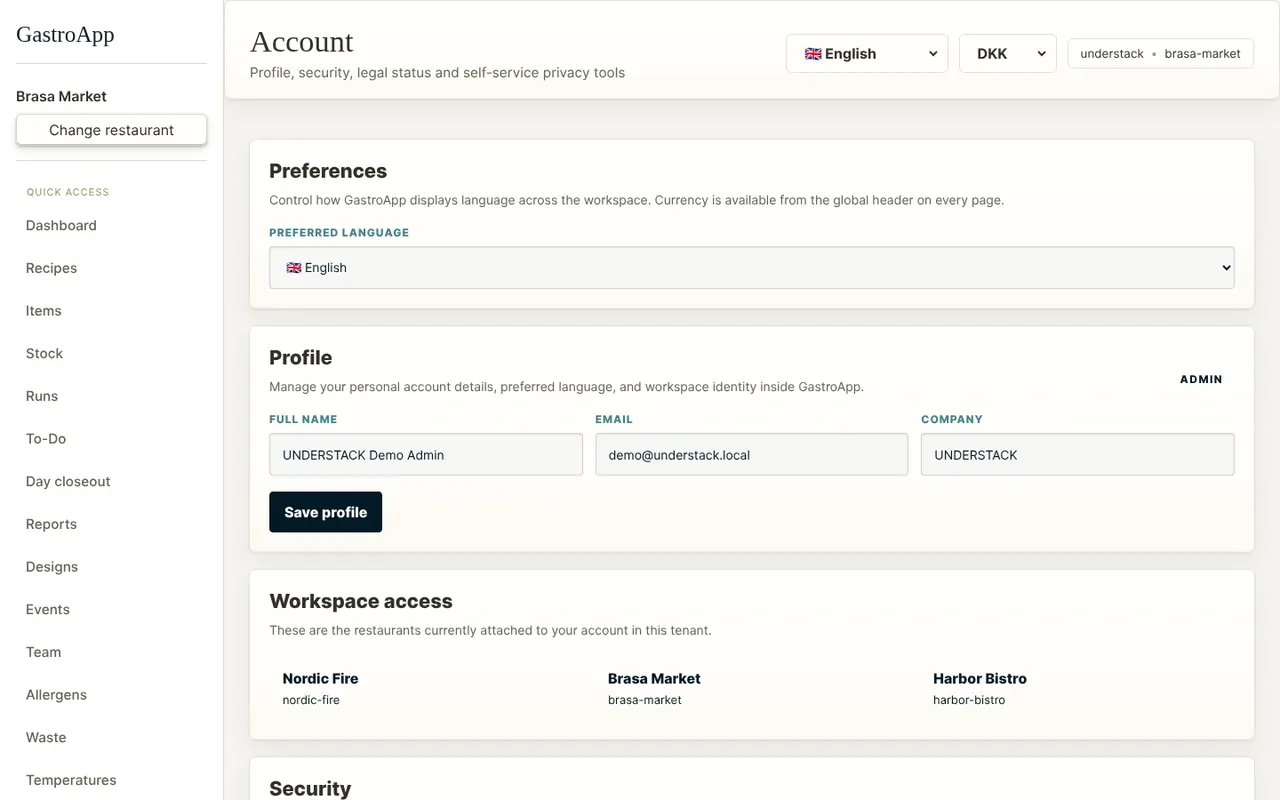
Settings page with profile and security Step 6. Use Log out all sessions if you lost a phone or signed in on a shared computer.
Step 7. The Team page in the menu is the team chat: create channels and send messages and files to your colleagues.