
GastroApp manual
Production, checklists and day closeout
Plan what to cook today, tick the daily lists and close the day with a comment and photos.
Step 1. Open Runs. Under Create Production Run choose the recipe and the number of servings, then press Create Run.
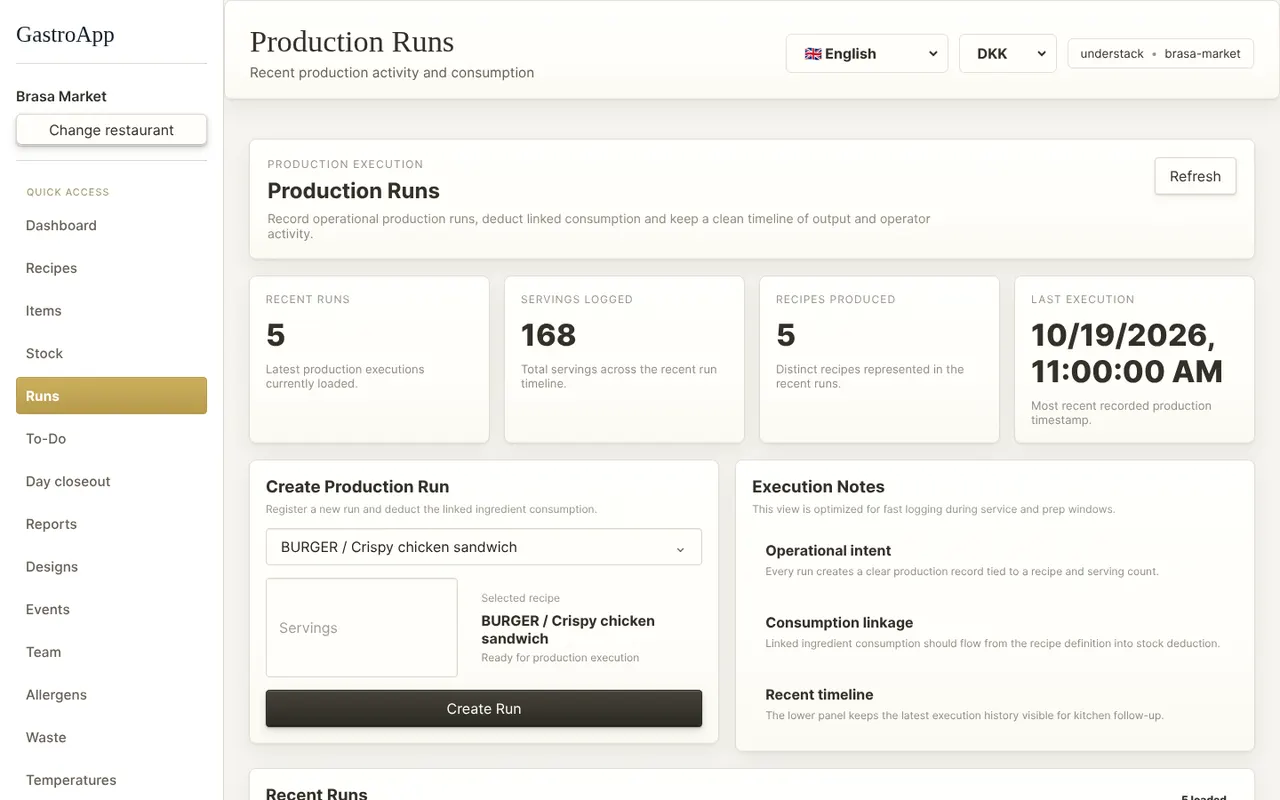
Production runs page Step 2. Add Execution Notes if something is special. Past runs stay under Recent Runs; today's plan also appears on the dashboard.
Step 3. Open To-Do for the daily lists. Press Create list, give it a title and use Add item for each point (for example “Opening check”, “Cleaning”, “Temperatures”).
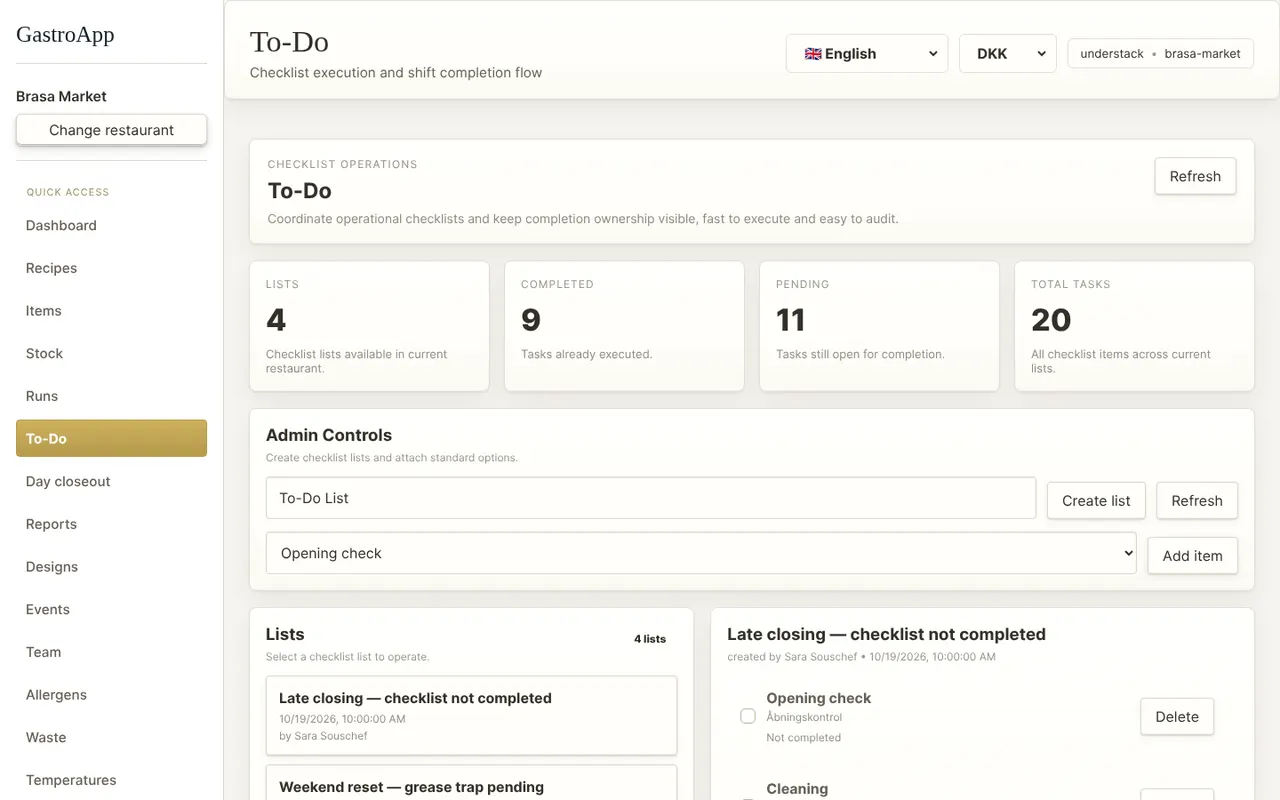
To-Do page with lists Step 4. Tick items as you finish them. The page also warns about lists that were not completed.
Step 5. At the end of the day open Day closeout and press New closeout.
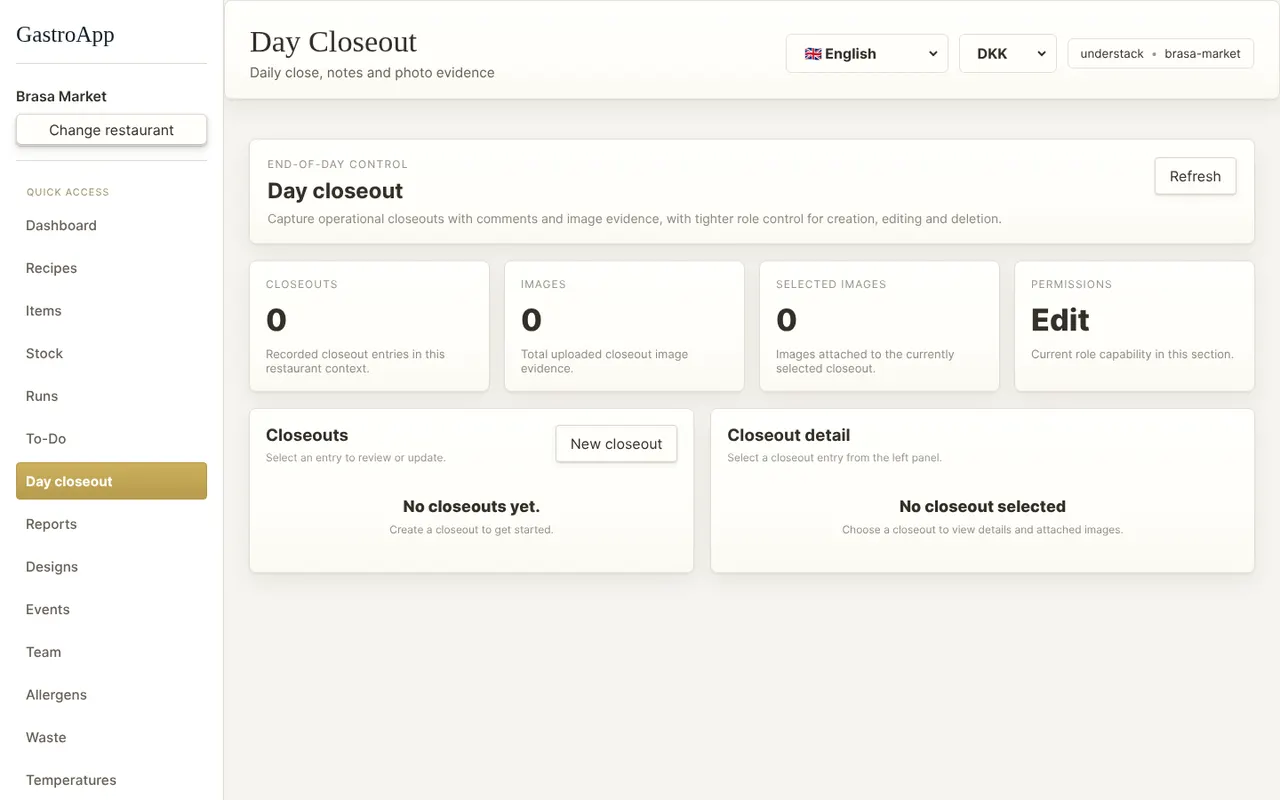
Day closeout page Step 6. Write a comment (recommendations, problems, what to do tomorrow), upload up to 6 images as evidence (cleaning, stock, cold room) and press Save comment.
The owner and the head chef can read and edit all closeouts; everyone else sees their own.